Overclocking Your CPU: Boosting Performance without Breaking the Bank
14 March 2026
Have you ever felt like your computer is just a step behind your needs? Whether you’re gaming, video editing, or running demanding applications, a sluggish CPU can be frustrating. The good news? You don’t need a new processor to squeeze out extra performance. Overclocking your CPU can be a game-changer, boosting speeds without costing you a dime.
But before you dive in, let’s break things down. In this guide, we’ll walk you through everything you need to know about overclocking—what it is, how to do it safely, and what you need to watch out for. Ready? Let’s rev up that processor!
What is Overclocking?
At its core, overclocking is the process of increasing your CPU’s clock speed beyond its factory settings. Think of it like giving your car a turbo boost—it makes your engine run faster, but it also generates more heat.Manufacturers set CPUs at a specific speed to balance performance, power consumption, and longevity. But many chips have untapped potential, allowing you to push them beyond those limits for extra speed.
While overclocking isn’t new, modern CPUs and motherboards make it easier and safer than ever. You just need the right knowledge, the right cooling, and a little patience.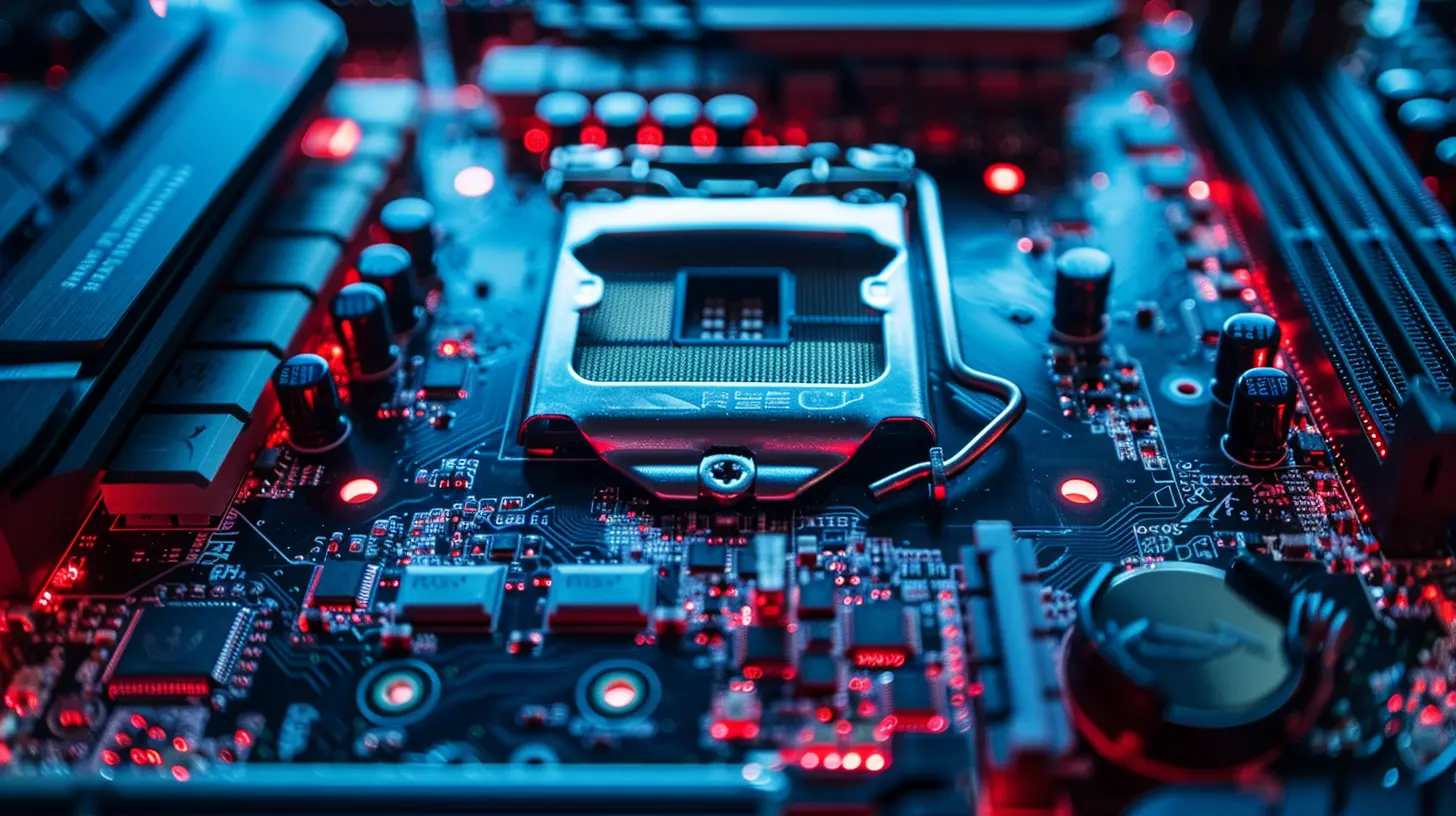
Why Overclock Your CPU?
Why would you want to overclock your CPU? Here are a few reasons:- Better Performance for Free – Who doesn’t love extra speed without spending money? Overclocking can improve gaming, rendering, and multitasking performance.
- Longer Lifespan for Your Hardware – Instead of buying a new processor, overclocking lets you stretch more life out of your current setup.
- Smoother Gaming Experience – Many games rely on CPU performance. Overclocking can help eliminate bottlenecks and provide better frame rates.
- Increased Productivity – If you use CPU-intensive software (think video editing, 3D modeling, or compiling code), an overclocked processor can shave off processing times.
But before you get excited, let’s talk about the risks.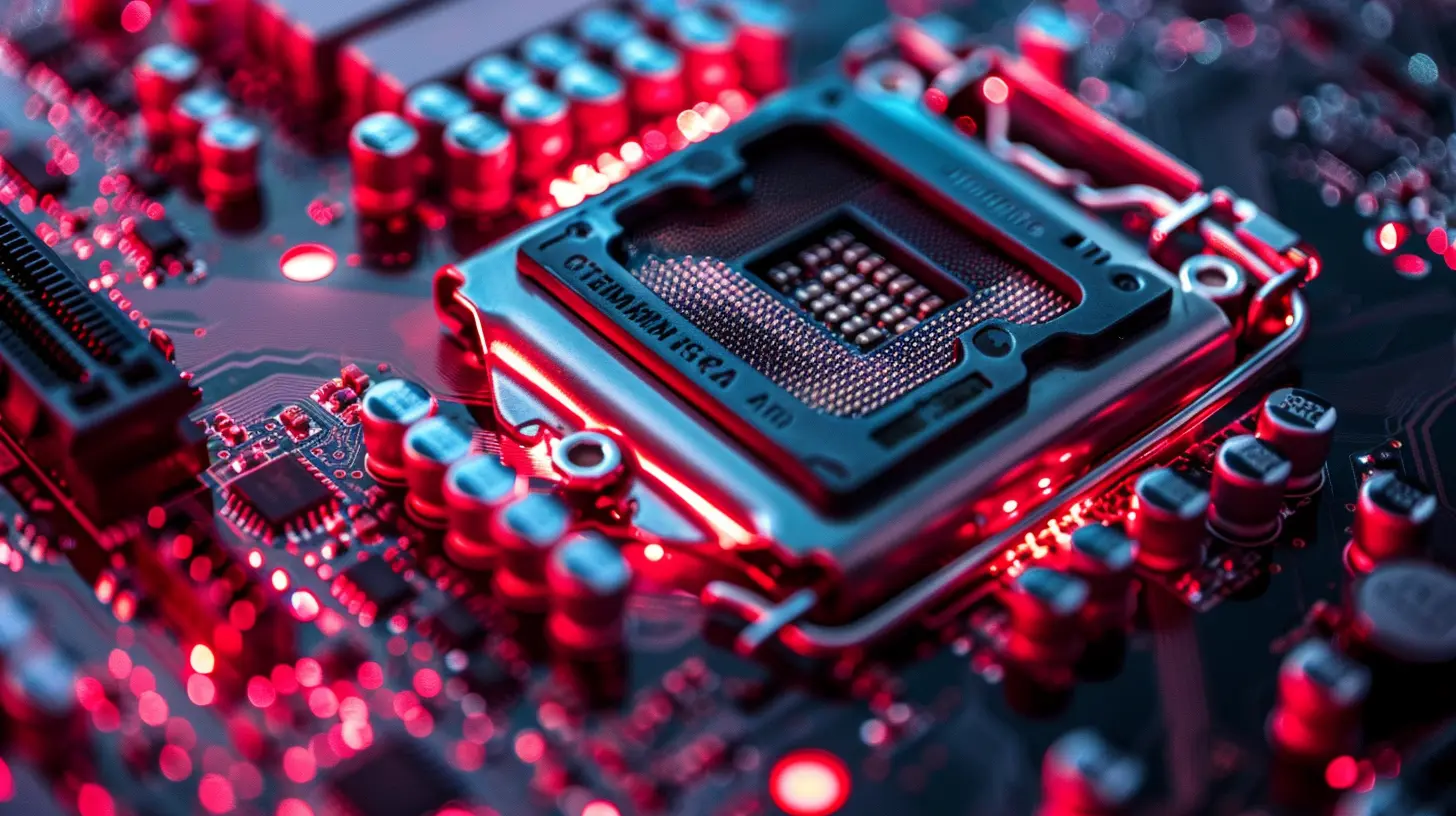
The Risks of Overclocking
Overclocking isn’t without its downsides. While modern hardware includes safety measures, pushing your CPU too far can cause problems.- Higher Temperatures – Overclocking generates more heat, meaning you’ll need proper cooling.
- Reduced Hardware Lifespan – Running your CPU at high speeds and voltage can shorten its life.
- System Instability – If not done right, your system might crash or freeze unexpectedly.
- Warranty Void – Many manufacturers don’t cover overclocked CPUs under warranty.
Sounds scary? Don’t worry. With the right approach, you can overclock your CPU safely.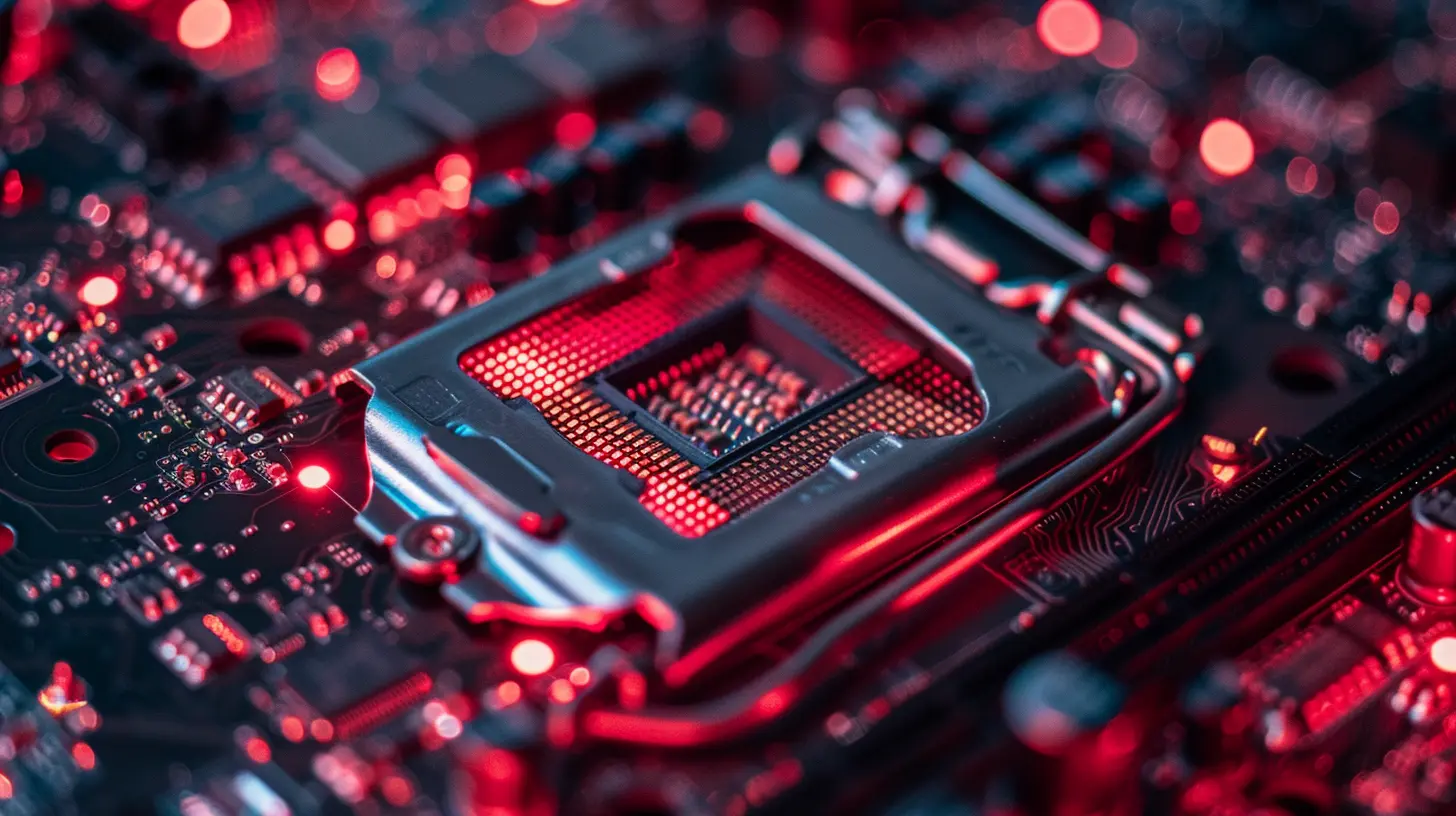
What You’ll Need for Overclocking
Before tweaking your CPU, make sure you have the necessary tools and components:1. A CPU That Can Overclock
Not all processors are unlocked for overclocking. Intel’s "K" and "KF" series CPUs and AMD’s Ryzen processors with an unlocked multiplier are the best candidates.2. A Good Motherboard
Your motherboard’s chipset matters. If you're on Intel, a Z-series motherboard is ideal. For AMD users, a B-series or X-series board works best.3. Proper Cooling
Overclocking increases heat output, so a high-quality cooler is necessary. Air coolers like the Noctua NH-D15 and liquid cooling AIO systems like the NZXT Kraken X63 are great choices.4. Reliable Power Supply
A solid power supply ensures stability. Avoid cheap PSUs—they can lead to system crashes or even hardware failure.5. Monitoring and Stress Testing Software
You’ll need these tools to test and monitor your overclock:- CPU-Z – Shows your CPU’s specs and clock speeds.
- HWMonitor – Monitors temperature and voltage.
- Prime95 / AIDA64 – Stress-tests your overclock for stability.
Step-by-Step Guide: How to Overclock Your CPU Safely
Now, let’s get into the real action. Follow these steps to safely overclock your CPU.Step 1: Access Your BIOS/UEFI
Restart your computer and enter the BIOS/UEFI by pressing DEL or F2 during boot-up. This is where all the magic happens.Step 2: Locate the Overclocking Settings
Look for settings like:- CPU Multiplier (Core Ratio)
- Vcore (CPU Voltage)
- XMP (for memory overclocking, if needed)
Step 3: Increase the CPU Multiplier
The multiplier determines your CPU’s frequency. For example:- A base clock (BCLK) of 100 MHz with a multiplier of 40 results in 4.0 GHz.
- Increase the multiplier by one step at a time (e.g., from 40 to 41).
Step 4: Adjust the Voltage (If Needed)
If your overclock isn’t stable, you might need to increase the CPU voltage slightly. Be careful—too much voltage generates excessive heat and shortens lifespan.A safe starting point:
- Intel CPUs – Stay below 1.35V.
- AMD Ryzen CPUs – Stick to 1.3-1.35V.
Step 5: Test Stability
Boot into Windows and run Prime95 or AIDA64 for 15-30 minutes. If your system crashes, go back into the BIOS and adjust.Step 6: Monitor Temperatures
Keep an eye on temperatures using HWMonitor or Core Temp.- Ideal Temps Under Load: Below 85°C.
- If Temps Go Too High – Reduce voltage or invest in better cooling.
Step 7: Fine-Tune and Repeat
Overclocking is trial and error. If a setting works, try a small increase. If it crashes, dial it back. The goal is a stable balance between performance and temperature.Extra Tips for a Successful Overclock
- Use Small Increments – Don’t jump to extreme values; slow and steady wins the race.- Enable XMP for RAM – Memory bottlenecks can hinder performance.
- Check Reviews for Safe Voltages – Every CPU has limits.
- Watch Out for VRM Temperatures – Your motherboard’s voltage regulators also get hot.
- Keep an Eye on Power Consumption – Overclocking draws more power.
When to Stop Overclocking
So, how do you know when you’ve pushed too far? Here are some red flags:- Frequent System Crashes – If your PC keeps rebooting, your settings may be too aggressive.
- Unstable Performance – Stuttering in games or applications means something isn’t right.
- Excessive Heat – If your CPU is consistently over 90°C, it’s not worth the risk.
- Minimal Gains – If extra speed barely changes performance, you’re better off sticking with a stable system.
If you hit any of these issues, dial your settings back slightly to find a stable sweet spot.
Final Thoughts
Overclocking your CPU isn’t just for tech enthusiasts—it’s a free way to boost performance without upgrading your hardware. As long as you follow safe methods, monitor temperatures, and stress-test your system, you can enjoy a faster computer without worrying about damage.Sure, it takes time and patience, but the rewards are worth it. Why settle for factory settings when your CPU has untapped potential? With a little tweaking, your system can run faster and smoother than ever.
So, are you ready to unlock the full power of your processor? Give it a shot and let your CPU flex its muscles!
all images in this post were generated using AI tools
Category:
Computer HardwareAuthor:

Marcus Gray
Discussion
rate this article
2 comments
Logan Thompson
Overclocking can be an effective way to enhance CPU performance without significant financial investment, offering users a budget-friendly alternative to hardware upgrades. However, it's crucial to weigh the potential risks, such as heat management and stability issues, against the benefits to make an informed decision.
March 30, 2026 at 12:13 PM
Marcus Gray
You're right. Overclocking can boost performance on a budget, but it's essential to manage heat and ensure stability for the best results.
Selina McGlynn
Great article! Overclocking is a fun way to enhance performance while saving money. Excited to try these tips! 🚀✨
March 23, 2026 at 4:59 AM
Marcus Gray
Thanks for the kind words! Have fun with the tips and let me know how it goes!